
Speed Studying: Using Keyboard Shortcuts for Instant Answers
Learn how keyboard shortcuts can transform your study sessions by giving you instant AI-powered explanations, helping you learn faster and retain more.
Try ScreenHelp Free
Get AI-powered screen assistance for any task. Analyze screenshots and get instant guidance.
Get StartedWhy Speed Matters When You're Studying
We've all been there: you're deep into a study session, working through practice problems or reviewing material on screen, and you hit a concept you don't understand. The traditional flow is painful — open a new tab, type your question, scroll through results, try to find a relevant explanation, and then context-switch back to what you were working on.
That cycle kills momentum. Research on learning efficiency consistently shows that the faster you can resolve confusion, the more you retain. When you have to break focus for several minutes to look something up, you lose the context that made the question meaningful in the first place.
So what if getting an explanation was as fast as pressing a key?
The Keyboard Shortcut Approach to Studying
Keyboard shortcuts have been a productivity staple for decades. Ctrl+C, Ctrl+V, Alt+Tab — these small actions save hours over time because they eliminate friction. The same principle applies to studying: the less friction between "I don't understand this" and "now I get it," the more productive your sessions become.
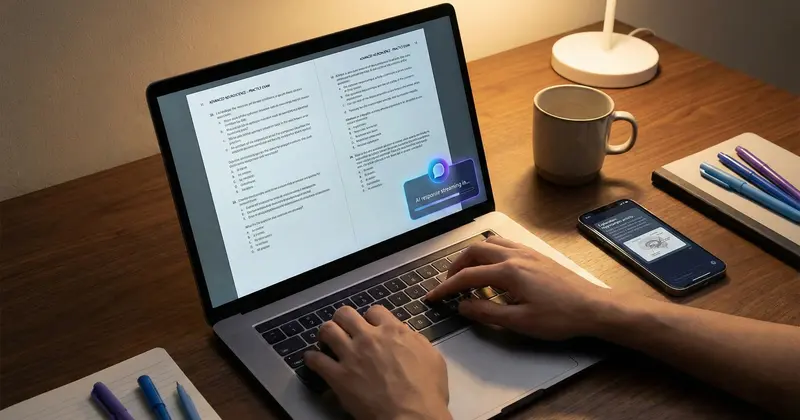
ScreenHelp's browser extension brings this concept directly to your study workflow. Once installed, it lets you trigger an AI-powered screen capture from anywhere on your operating system using a keyboard shortcut. The AI analyzes what's on your screen and streams back an explanation — no copying, no pasting, no tab-switching required.
Here's how the flow works in practice:
- You're reviewing material on your screen (a practice exam, a textbook PDF, a lecture recording paused on a slide)
- You hit your keyboard shortcut
- ScreenHelp captures your screen and sends it to an AI model with vision capabilities
- An explanation streams back in seconds
That's it. The entire interaction takes a fraction of the time it would take to manually type out a question.
Setting Up Your Study Shortcuts
Getting started with keyboard-triggered screen assistance is straightforward:
Step 1: Install the Browser Extension
ScreenHelp offers a Chrome browser extension that operates system-wide. Once installed and activated, it works regardless of which application you're using — whether that's a browser, a PDF reader, a desktop app, or anything else.
Step 2: Set Up Custom Prompts
This is where things get powerful for studying. ScreenHelp allows you to create custom predefined prompts that change how the AI interprets your screen. Instead of relying on a generic "what's on my screen?" approach, you can tailor prompts for different study contexts:
- "Explain this concept simply" — Great for when you're reading dense academic material and need a plain-language breakdown
- "What's the step-by-step solution?" — Useful when practicing math, physics, or chemistry problems and you want to understand the process, not just the answer
- "What are the key points I should remember?" — Perfect for reviewing slides or textbook pages before an exam
- "Why is this answer correct/incorrect?" — Ideal for going through practice quizzes and understanding the reasoning behind each option
You can create as many custom prompts as your study needs demand, then trigger them quickly when the moment calls for it.
Step 3: Choose Your Model and Settings
ScreenHelp lets you select which AI model processes your screenshots, as well as adjust reasoning effort. For quick factual lookups, a faster model with lower reasoning effort might be ideal. For complex problems that require deeper analysis — like multi-step calculus or organic chemistry mechanisms — you may want a more capable model with higher reasoning effort.
Some model and reasoning settings are available on paid plans, but the free tier gives you a solid starting point to see if the workflow fits your study habits.
Study Scenarios Where This Shines
Practice Exams and Self-Testing
When you're working through practice tests, the goal isn't just to check if you're right — it's to understand why. With a keyboard shortcut, you can instantly get an explanation for any question you're unsure about. This turns passive answer-checking into active learning.
Lecture Review
Pause a recorded lecture on a complex slide, hit your shortcut, and get a detailed breakdown. This is especially valuable for subjects where the visual content (diagrams, charts, equations) carries as much meaning as the spoken explanation.
Certification Prep
Certification materials — whether for IT, healthcare, project management, or any other field — often involve dense, specialized content. When you encounter unfamiliar terminology or concepts during practice sessions, instant screen-based explanations help you maintain your study rhythm.
Reading Academic Papers
Academic papers are notoriously dense. When you're reading a research paper on screen and encounter a methodology or statistical concept you don't fully grasp, a quick shortcut gives you context without derailing your reading flow.
Homework and Problem Sets
When working through homework problems, understanding the approach matters more than the final answer. Capture the problem on your screen and have the AI walk you through the logic. It's like having a tutor on standby.
The Mobile Reading Option
One underappreciated feature for study workflows: ScreenHelp lets you scan a QR code and stream AI responses to your mobile browser. This is handy when you want to keep your main screen fully dedicated to the study material while reading explanations on your phone beside you. No split-screen juggling, no covered-up content — just the study material on your monitor and the AI explanation in your hand.
Tips for Maximizing Your Study Efficiency
Beyond the tool itself, here are some principles that make keyboard-shortcut studying more effective:
1. Don't just read — interrogate. The best use of instant answers isn't passive consumption. After getting an explanation, pause and try to restate it in your own words. The shortcut saves time on finding the answer; you still need to do the mental work of understanding it.
2. Batch your confusion. If you're doing a first pass through material, it can help to mark confusing spots and then go back through them in a focused session where you're rapidly capturing and reviewing explanations.
3. Use different prompts for different passes. On a first pass, you might use a "summarize this" prompt. On a review pass, switch to "what are common exam questions about this topic?" to test your deeper understanding.
4. Start with the free tier. ScreenHelp's free usage limit is enough to test whether this workflow actually improves your study sessions before committing to a paid plan.
5. Combine with active recall. After using AI explanations to understand a topic, close everything and try to write out what you learned from memory. The keyboard shortcut method works best as a supplement to proven study techniques, not a replacement.
The Bottom Line
The gap between encountering a question and understanding the answer is where study momentum lives or dies. Keyboard shortcuts for AI-powered screen analysis collapse that gap to seconds. Whether you're preparing for a certification, grinding through practice exams, or trying to make sense of a complex lecture slide, the ability to get instant, context-aware explanations without leaving your material is a genuine quality-of-life improvement for studying.
The friction you eliminate compounds over time. A few seconds saved per question, multiplied across hundreds of questions in a study session, adds up to hours reclaimed — and more importantly, far less broken focus.
Start Using AI Screen Assistance Today
Join thousands of users who are already working smarter with ScreenHelp.
Related Articles

Perfect Your English Grammar with Instant Screen Analysis
Struggling with English grammar rules? Learn how AI-powered screen analysis can give you instant explanations for tricky grammar questions while you study.
Read article
Study from the Couch: Streaming AI Explanations to Your Phone
Learn how to stream AI-powered explanations directly to your mobile phone with ScreenHelp's QR code feature — study comfortably from anywhere in your home.
Read article
SWOT Analysis on Autopilot: Visualizing Business Case Studies with AI
Learn how to master SWOT analysis for business case studies using AI-powered screen assistance. Break down strengths, weaknesses, opportunities, and threats faster.
Read article