
Stop Googling Answers: Get Instant Context on Your Screen
Context switching kills productivity. Learn how AI screen assistants give you instant answers without leaving your current task — and why it matters for learning.

Try ScreenHelp Free
Get AI-powered screen assistance for any task. Analyze screenshots and get instant guidance.
Get StartedThe Hidden Cost of "Let Me Just Google That"
We all do it. You're working through a problem set, studying for a certification, or trying to understand a complex diagram — and you hit a wall. So you open a new tab, type a query into Google, scroll through results, click a link, scan the page, realize it's not quite what you needed, go back, try another link…
Before you know it, ten minutes have passed. You've read three tangentially related Stack Overflow threads, forgotten exactly what you were looking for, and lost your flow entirely.
This isn't just anecdotal frustration. Research on context switching consistently shows that it takes an average of 23 minutes to fully refocus after an interruption. Even a quick alt-tab to a search engine counts. When you're studying or working through complex material, those micro-interruptions compound into massive productivity losses.
Why Traditional Search Falls Short for On-Screen Problems
Google is incredible for broad queries. But when you need help with something specific to what's on your screen right now, traditional search has some fundamental limitations:
1. You Have to Translate Visual Context Into Text
Imagine you're looking at a circuit diagram, a statistical output, a piece of code with a confusing error, or a graph you don't understand. To Google it, you need to describe what you're seeing in words — and you might not even have the right vocabulary to do that effectively. That's the paradox: if you knew exactly how to describe the problem, you'd probably already understand it.
2. Results Are Generic, Not Contextual
Search engines return results based on keywords. They don't know what you're looking at, what you've been working on, or what level of explanation you need. You end up sifting through results that are either too basic or too advanced.
3. The Flow-Breaking Tab Dance
Every search requires you to leave your current environment. Open a tab, type, scan, read, switch back, try to apply what you learned, realize you need more info, switch again. It's exhausting and inefficient — especially during timed practice tests or intensive study sessions.
A Better Approach: Bring the Answer to Your Screen
The core idea is simple: instead of leaving what you're doing to search for answers, what if the answer could come to you based on what's already on your screen?
This is exactly what AI screen assistants do. Rather than requiring you to type out a description of your problem, these tools can see what you see and provide contextual help instantly.
The workflow shift looks like this:
- Old way: See problem → Try to describe it → Search → Filter results → Read → Switch back → Apply
- New way: See problem → Trigger AI → Get a contextual explanation → Keep working
That's going from 7 steps to 4, and more importantly, you never leave your current context.
How AI Screen Assistance Actually Works
Modern AI models with vision capabilities can analyze images — including screenshots — and understand what's happening in them. They can read text, interpret diagrams, recognize UI elements, and understand spatial relationships.
When applied to screen assistance, the process typically works like this:
- You share your screen (or a specific window/tab)
- When you need help, you trigger a capture
- The screenshot is sent to an AI vision model
- The AI analyzes what's on your screen and provides a relevant response
This is fundamentally different from a chatbot where you type questions. The AI has the same visual context you do, which means its answers are immediately relevant to your specific situation.
Practical Use Cases That Save Real Time
Here's where this gets genuinely useful across academic and professional scenarios:
Studying and Exam Prep
When you're reviewing practice materials and encounter a concept you don't understand, an AI screen assistant can explain it in context. No need to open a new tab and search for "what does this term mean in the context of X." The AI already sees the context.
Certification Preparation
IT certifications, project management credentials, language proficiency tests — these all involve massive amounts of material. When you're doing practice questions and want to understand why an answer is correct (not just what the answer is), having instant contextual explanation accelerates learning significantly.
Working Through Problem Sets
Math, physics, engineering, programming — subjects where you often get stuck on a specific step. Instead of trying to Google a partial equation or describe a code error in words, the AI can see the exact problem and walk you through the logic.
Reading Dense Academic Material
Journal articles, textbooks, technical documentation. When you hit a paragraph that's incomprehensible, getting an instant simplified explanation without leaving the page keeps you in your reading flow.
Learning New Software
Staring at an unfamiliar interface? Instead of searching "how to do X in [software name]," an AI that sees your screen can point you in the right direction based on the actual UI you're looking at.
ScreenHelp: Built for This Exact Workflow
This is precisely the problem ScreenHelp was designed to solve. It's a web-based AI screen assistant that works like this:
- Start a session by clicking "Start ScreenHelp" and sharing your screen, a window, or a specific tab
- Trigger help whenever you need it — a screenshot is captured and sent to an AI vision model
- Get a streamed response with contextual explanation based on what's on your screen
A few things that make it particularly practical:
- Custom prompts: You can set up predefined prompts for different scenarios. For example, one prompt for "explain this concept simply" and another for "walk me through this step by step." Then trigger whichever fits the moment.
- Keyboard shortcuts via browser extension: Using the Chrome extension, you can trigger captures with keyboard shortcuts from anywhere on your OS. No need to switch windows to click a button.
- Mobile response streaming: Scan a QR code and responses stream to your phone. This is surprisingly useful when your screen is full with study material and you want to read the explanation on a second device.
- Model and reasoning control: Choose different AI models and adjust reasoning effort based on the complexity of what you need help with.
You can start using it for free, with a paid tier for heavier usage and advanced settings.
Tips to Maximize Your "No-Googling" Productivity
Whether you use ScreenHelp or develop your own system, here are some broader strategies to stop the tab-switching habit:
1. Batch Your Unknowns
When studying, mark things you don't understand instead of immediately looking them up. Then address them in a focused batch. If you're using an AI screen assistant, this becomes even faster — just trigger help on each marked item sequentially.
2. Use the Feynman Technique With AI Verification
Try to explain a concept to yourself first. If you get stuck, then ask for help. This way, the AI's explanation fills a specific gap rather than replacing your own thinking.
3. Set Up Prompt Templates for Recurring Needs
If you find yourself repeatedly asking for the same type of help (e.g., "explain this error message," "simplify this paragraph," "what's the next step here"), create templates. ScreenHelp's custom prompt feature is built for exactly this.
4. Keep a "Resolved" Log
When you get an answer — whether from AI or any source — jot down a brief note. This builds your own knowledge base over time, and you'll find yourself needing external help less and less.
5. Time-Box Your Help Requests
Give yourself a rule: struggle with a problem for 5 minutes before asking for help. This ensures you're building problem-solving skills while still not wasting 30 minutes going in circles.
The Bigger Picture: Learning, Not Just Answering
The real value of AI screen assistance isn't just getting answers faster — it's about staying in your learning flow. Every time you break context to search for something, you lose a little bit of the mental model you were building. By keeping help within your current environment, you maintain the cognitive thread.
This is especially important for deep subjects where understanding builds on itself. Losing your place in a proof, a code debugging session, or a complex reading passage can set you back far more than the time spent searching suggests.
The goal isn't to avoid learning. It's to remove the friction between learning moments so you can spend your energy on understanding, not on navigating browser tabs.
Final Thought
The next time you catch yourself reaching for a new tab, pause. Ask whether you really need a general web search, or whether you need contextual help with what's right in front of you. If it's the latter, an on-screen AI assistant might save you more time than you'd expect.
Start Using AI Screen Assistance Today
Join thousands of users who are already working smarter with ScreenHelp.
Related Articles

Perfect Your English Grammar with Instant Screen Analysis
Struggling with English grammar rules? Learn how AI-powered screen analysis can give you instant explanations for tricky grammar questions while you study.
Read article
Analyze Poetry and Literature Themes Visually with AI Screen Assistance
Struggling with poetry analysis or literature themes? Learn how visual approaches and AI screen assistants can deepen your understanding of complex literary texts.
Read article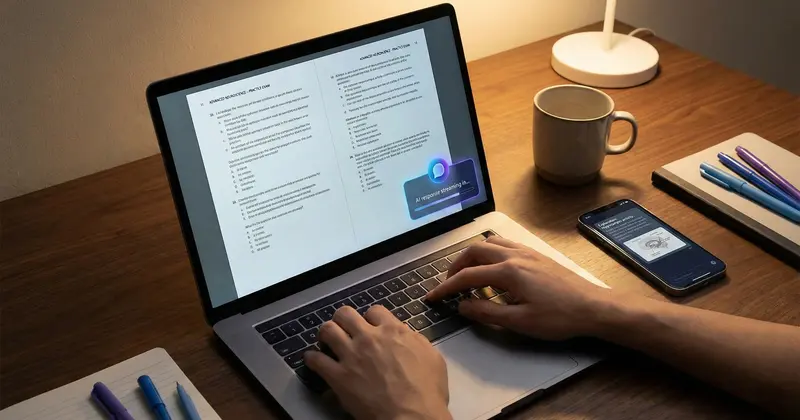
Speed Studying: Using Keyboard Shortcuts for Instant Answers
Learn how keyboard shortcuts can transform your study sessions by giving you instant AI-powered explanations, helping you learn faster and retain more.
Read article